
Release Date: 15th October 2019
- OSHA Reporting
- Reporting Points as Linked Fields
- Audit – Score/Performance Reporting
- Totals
- Query Filters
- New Audit Performance Rate Chart Tile
- Audit – New Out-The-Box Scoring Lists
- Thresholds for Charts
- Amend your Subscription Query
- Calculation Fields – Calculate on Load/Change
OSHA Reporting
OSHA stands for Occupational Safety and Health Administration and is the governing body in the US where records of injuries and/or illnesses in the workplace have to be reported each year. So this feature is only applicable to tenants that have legal entities in the US and have to produce OSHA reports each year.
In order to comply with OSHA, there are a number of forms that need to be produced. Not all forms will be submitted to OSHA each year, but they must be available if OSHA requires them to be submitted.
Not everyone will have permission to view or product OSHA reports due to the sensitive nature of the content of the documents, so only those people with the OSHA permission will see the options in the UI to produce these reports.
As part of the OSHA work, there are now a number of additional core fields added to AVA which is disabled by default. These fields relate to specific bits of information needed for the various OSHA reports. Your implementation team can advise on which fields are required and how they should be used.
Legal Establishment Feed
In order to generate some of the OSHA documents, we have introduced the concept of a Legal Establishment. These are the legal entity that is responsible for the injury or illness when an event happens.
The feed contains a lot of information needed for OSHA. The fields are as follows:
- _id – This is an id for that establishment row eg 1,2,3,4 etc
- establishment_name – A string that represents a unique name for that establishment
- company_name – A string that represents the company name
- street_address – A string for the first line of the address for that establishment
- city – A string for the city for that establishment
- state – A string for the state for that establishment
- zip – A string for the zip code for that establishment
- naics_code – a reference code for the North American Industry Classification System
- industry_description – A string that gives a short description of the industry
- size – This is a number relating to a size category from the OSHA specs
- establishment_type – This is a number relating to a size category from the OSHA specs
- annual_average_employees – future plans are to get this data from data in other AVA modules if they are available to you. For now, this is a number representing the number of employees the establishment covers.
- total_hours_worked – future plans are to get this data from data in other AVA modules if they are available to you. For now, this is a number representing the number of hours worked for the employees the establishment covers.
- executive_name – this is the name of the person that should appear as the person responsible for the OSHA submission.
- executive_title – this is the job title for that executive
- executive_phone – a phone number for that executive
Once this feed is available at a location available to AVA, like any other feed, the implementation team can configure this to generate the list of Legal Establishments that can be selected when you generate the OSHA forms.
OSHA 301 Event Details Form
The OSHA 301 form is an export of the individual event details including details about the person involved and the type of injury or illness that was sustained. To generate an OSHA 301 report, you must view the event record and go to the Event Details step. Against each line item of Event Details, providing it is either an injury or illness, you will see a button labelled OSHA 301 which looks like this:
Clicking this button will produce a formatted Excel spreadsheet containing the relevant OSHA information for that event.
OSHA 300 Event Log
Each legal establishment should have on display a running log of any event which resulted in an injury or illness for that current year. This is done via a UDQ that should be created to include all the events relevant to that establishment that are OSHA reportable. Once the UQD is produced, you will get an option to export those events in an OSHA 300 formatted Excel spreadsheet.
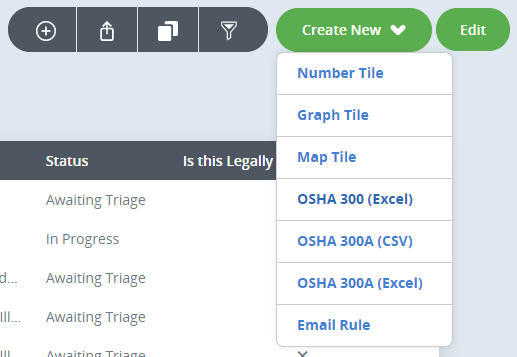
Once you choose the OSHA 300 (Excel) option, you will then be prompted to choose which Legal Establishment the report is relevant to. When you select the Establishment, the detail relevant to that Establishment will be pulled through to the OSHA 300 form and AVA will generate the Excel document for you to download.
OSHA 300A & CSV File
In a similar way to the OSHA 300 form, the 300A and the csv file are generated via a similar UDQ, but this time the date range is for the previous year. By March 2nd each year, you must submit the csv file to the OSHA system for the previous year. So all of the OSHA reportable injuries and illnesses for 2019 will need to be submitted by March 2nd 2020. You will be prompted to select the Legal Establishment when generating these files too so the correct data can be added to the form.
Reporting Points as Linked Fields
The ‘Linked Fields’ functionality has been extended to allow your Reporting Point to act as a driving field.
Therefore you can narrow down the selections available in a list based on the Reporting Point selected in the record, giving your users a better experience while helping to ensure you collect better data.
Once the links are configured, you can then manage the relationships via the existing functionality in the ‘Linked Fields’ screen within the Administration Module.
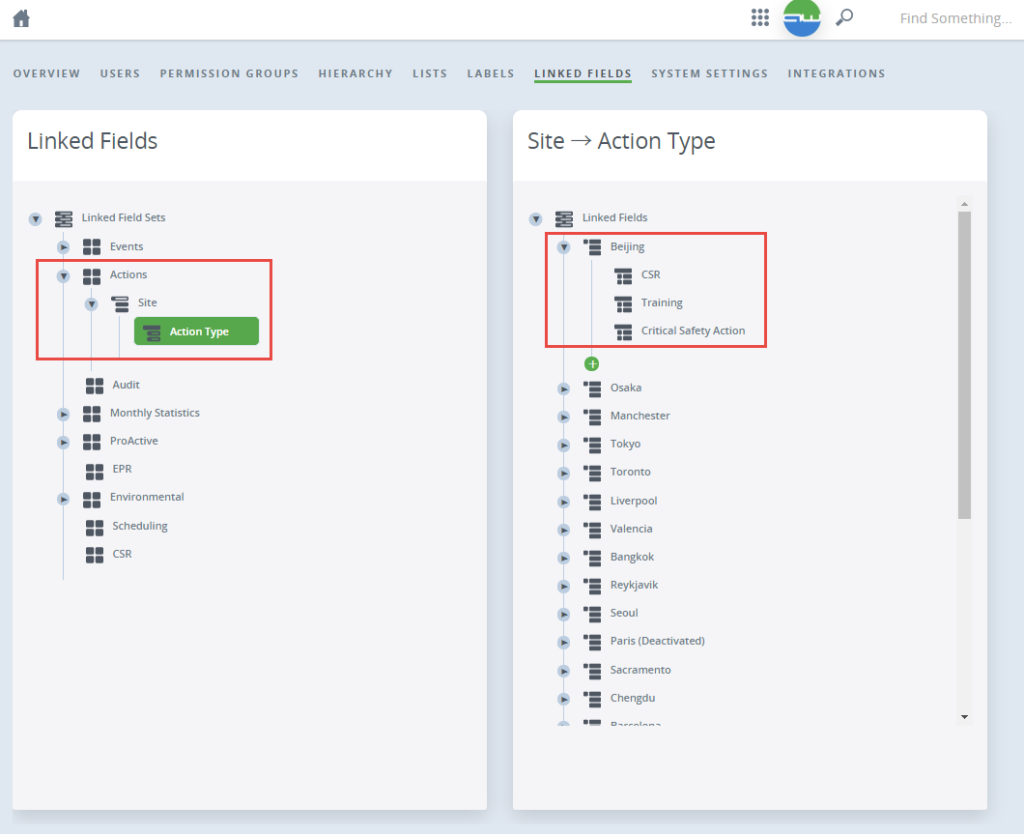
If you would like to have this set up, please contact you Account Manager for more information.
Audit – Score/Performance Reporting
We have made some improvements to our Audit Module to allow you to glean and report on how well your Audit has performed.
Totals
To give you clarity on how your scored Audit record has performed we have added a Total to the Performance TAB.
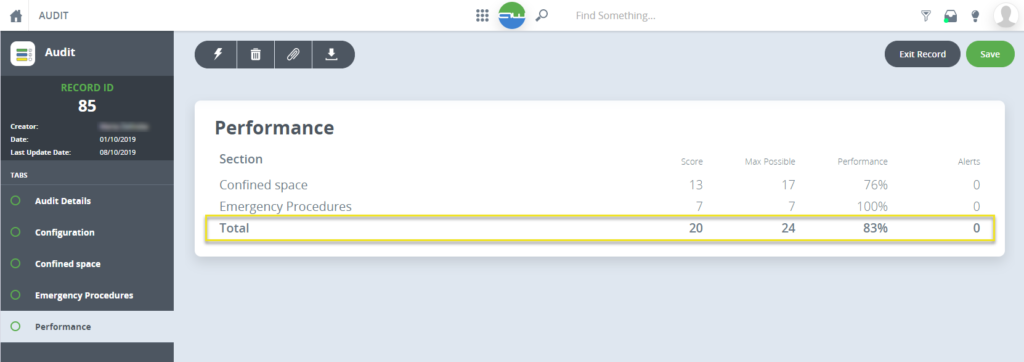
Query Filters
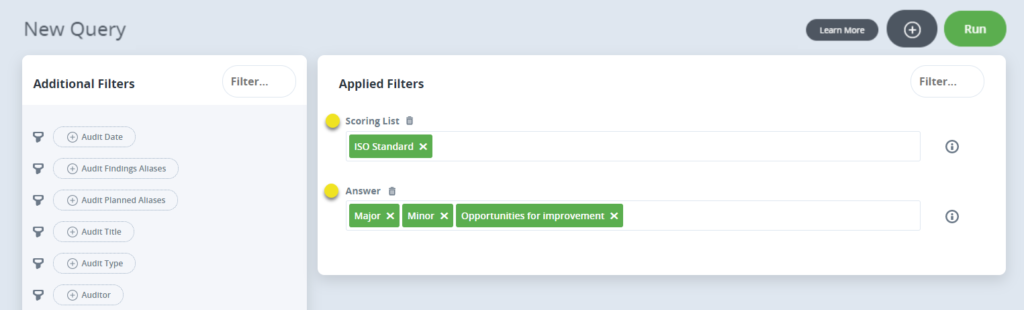
To help you find any Audit records with particular answers given, records that have non-compliant answers flagged for example, we have added an Answer filter to the Audit Query screen. You will need to use the Scoring List filter in conjunction with Answer filter to reduce the Answer list. This functionality is limited to just one Scoring List at a time currently.
New Audit Performance Rate Chart Tile
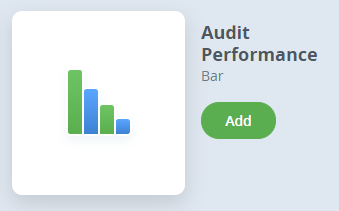
We have added a new Tile to our Tile Catalogue called Audit Performance.
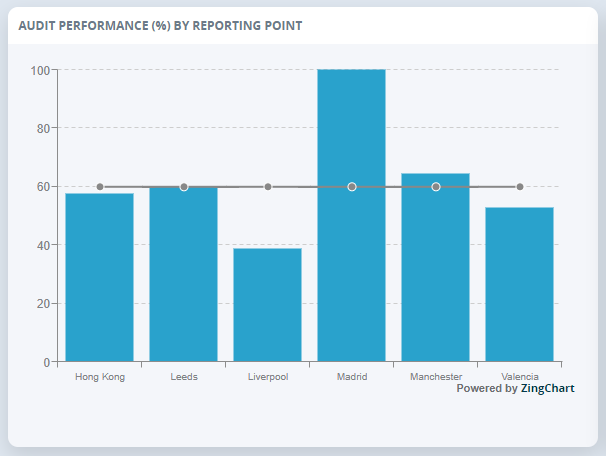
This Rate chart uses the calculation Total Score / Max Possible Score * 100 to give a % performance across all the records provided by the two underlying Queries, split by the chosen “Group By” field.
Audit – New Out-The-Box Scoring Lists
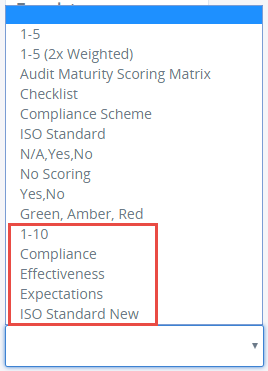
5 new Scoring Lists have been added for the Audit Module, which are available to select when setting up a new template within Module Admin.
Thresholds for Charts
You can now add a minimum and/or maximum value to display on a chart, allowing you to filter out any anomalies which may be skewing the scale on your charts or focus in on the data you’re particularly interested in.
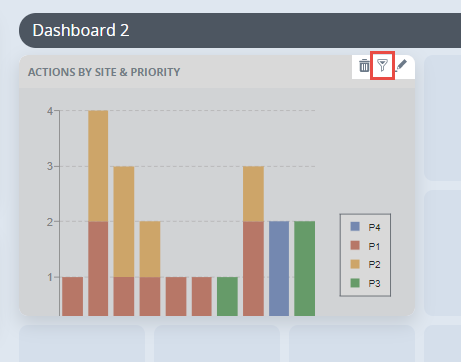
Once you’ve added a chart to your Dashboard, access the new fields via the ‘Edit Query’ icon on the chart.
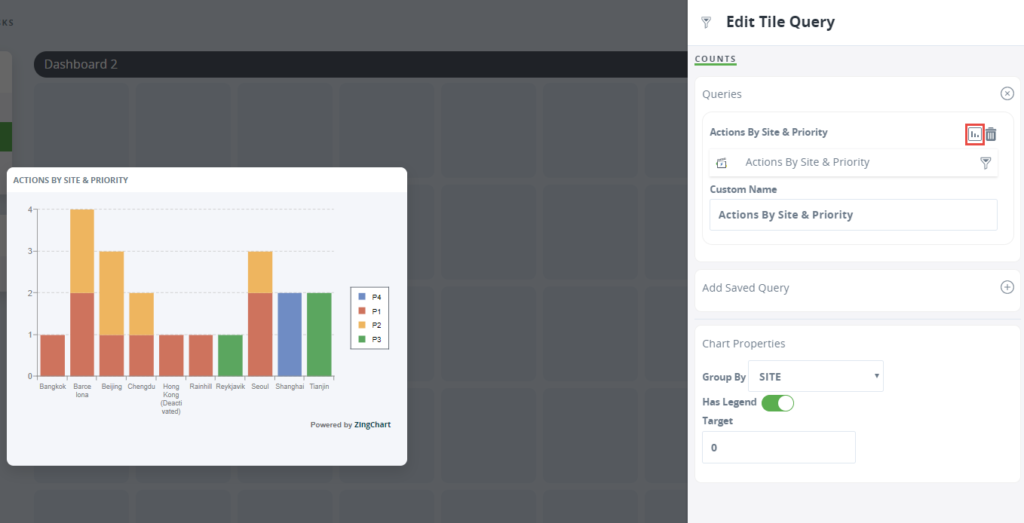
From here you can select to edit the chart properties.
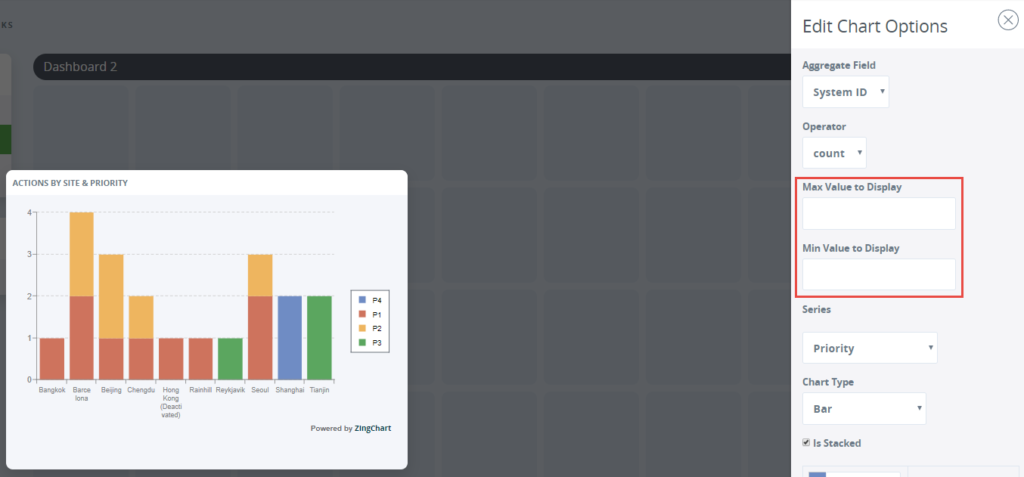
Options of ‘Min Value to Display’ and ‘Max Value to Display’ will appear, where you can enter a value to apply.
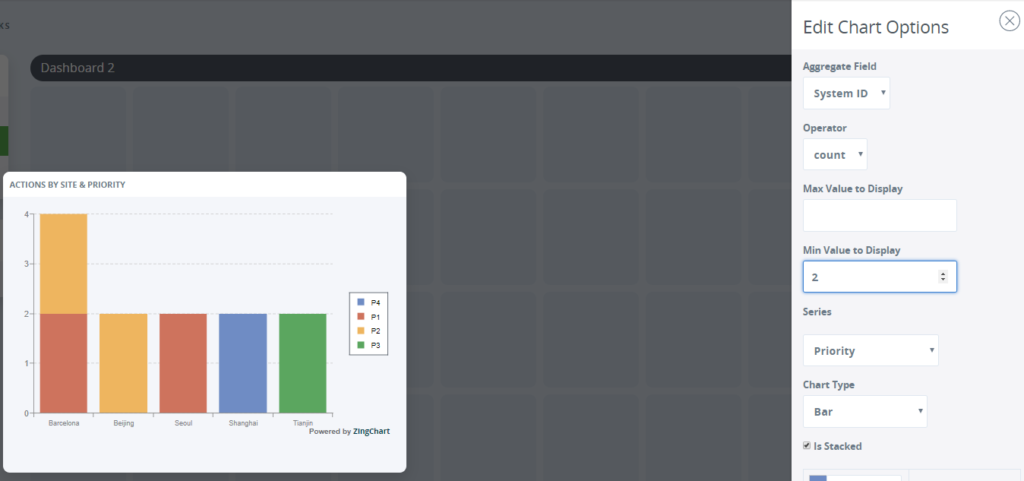
Entering a minimum value will remove any results displaying which fall below this number, and vice versa for the maximum value.
Amend your Subscription Query
Your System Administrators can now view and edit the Queries that sit behind Subscriptions and Webhooks.
Calculation Fields – Calculate on Load/Change
Any calculation fields that have been set up for your tenant of AVA will now calculate on load of the record (previously you would have to save the record to see the calculation update on screen)

Please Note: You may not see this calculation field update immediately on change of the parent field if the parent field is on a previous TAB and the record has not been saved.